Know that every webhook you receive is genuine.
Anyone who learns your webhook URL can send fake requests to it. With webhook signing, Smartlead adds a signature to every request it sends. Your server checks that signature with a signing secret that only you and Smartlead know. If the signature doesn't match, you reject the request.
Smartlead follows the open Standard Webhooks format, so your developer can use a ready-made library to check signatures in any language.
Signing is off by default. You turn it on for each webhook separately. Webhooks you don't change keep working exactly as before.
The webhook must already be saved. The signing section appears when you edit a saved webhook. If you're creating a new one, save it first, then open it again.
Signing works for webhooks that send to your own URL (custom endpoints, Zapier, Make, n8n and similar). Slack webhooks can't be signed.
You need to be the account owner, a team member with Admin or Full Member access, or a client with full access. Other roles don't see the signing section.
New to webhooks? Start with Set Up Smartlead Webhooks for Campaign Automation.
Open your Smartlead dashboard.
Go to Settings → Webhooks. For a campaign webhook, you can also open the campaign and go to its Settings → Webhooks tab.
Click the pencil icon on the webhook you want to secure. The Edit Webhook dialog opens.
Find the Signed webhook section and click Enable signing.
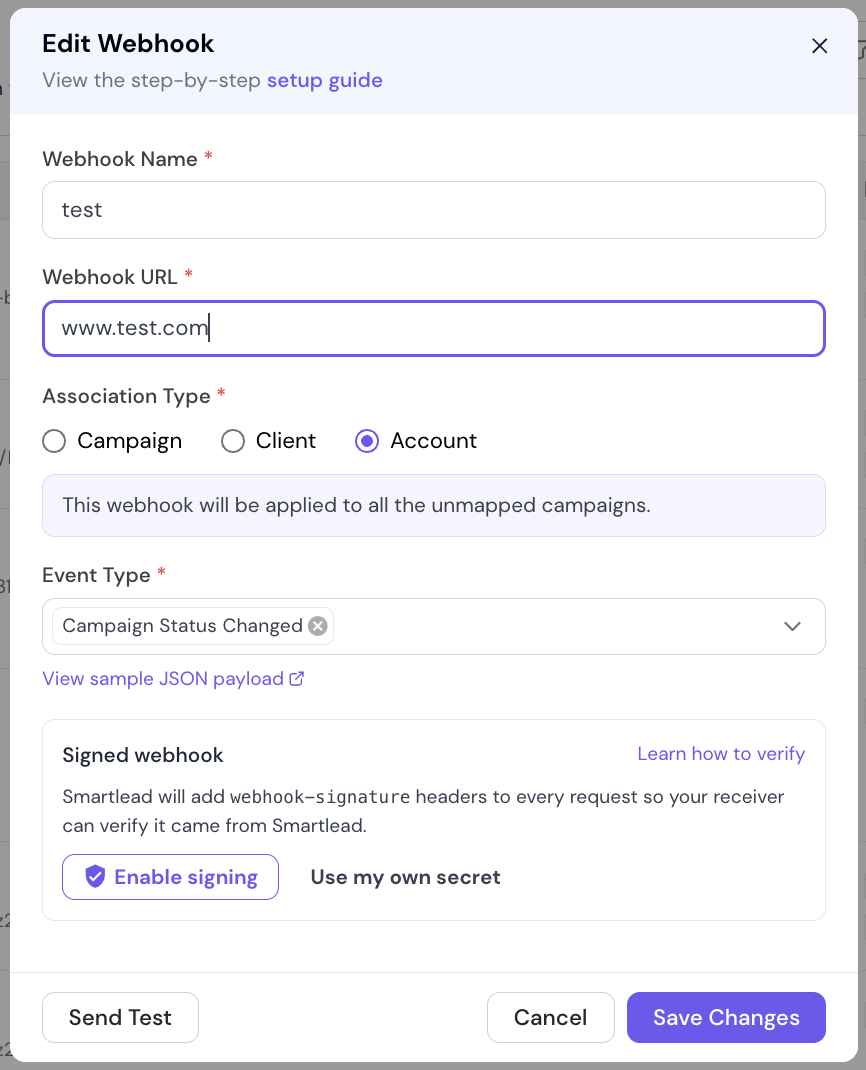
Your Signing secret appears. It starts with whsec_. Click the copy icon next to it.
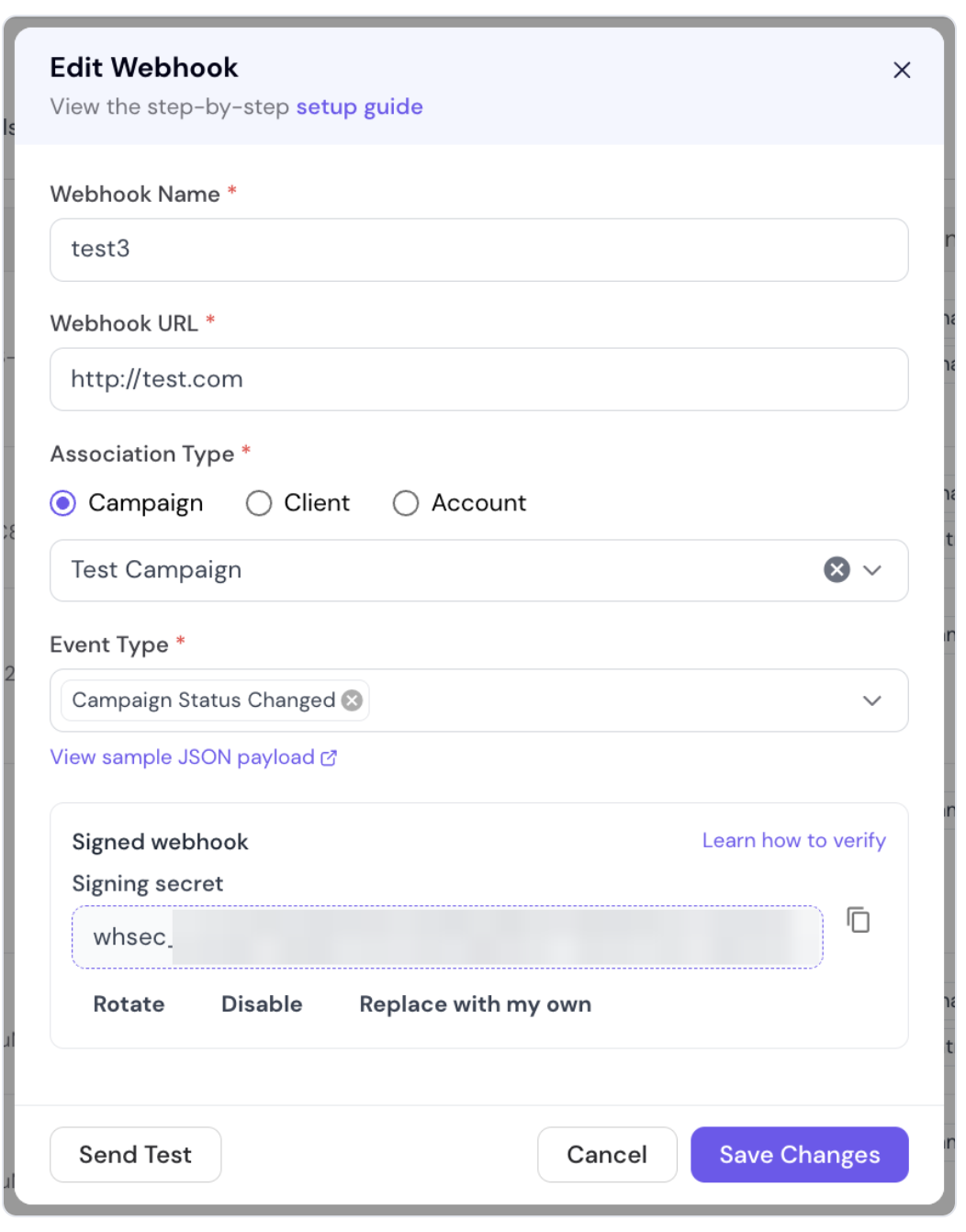
Give the secret to whoever runs your webhook receiver, or add it to your server's settings. Your server uses it to check each request (see How your server checks the signature below).
That's it. From now on, every request this webhook sends includes signature headers. In the campaign's webhook list, signed webhooks show a Signed label.
Treat the secret like a password. Don't post it in chat, tickets or screenshots. If it leaks, rotate it. You can view it again any time by editing the webhook.
If you'd rather create the secret yourself (for example, to use the same secret on several webhooks), click Use my own secret instead of Enable signing, paste it in, and click Save secret.
The secret must start with whsec_, followed by base64 text that decodes to 24 to 64 bytes. For example: whsec_MfKQ9r8GKYqrTwjUPD8ILPZIo2LaLaSw+/zF6g1tQ1k=. Your developer can generate one with:
echo "whsec_$(openssl rand -base64 32)"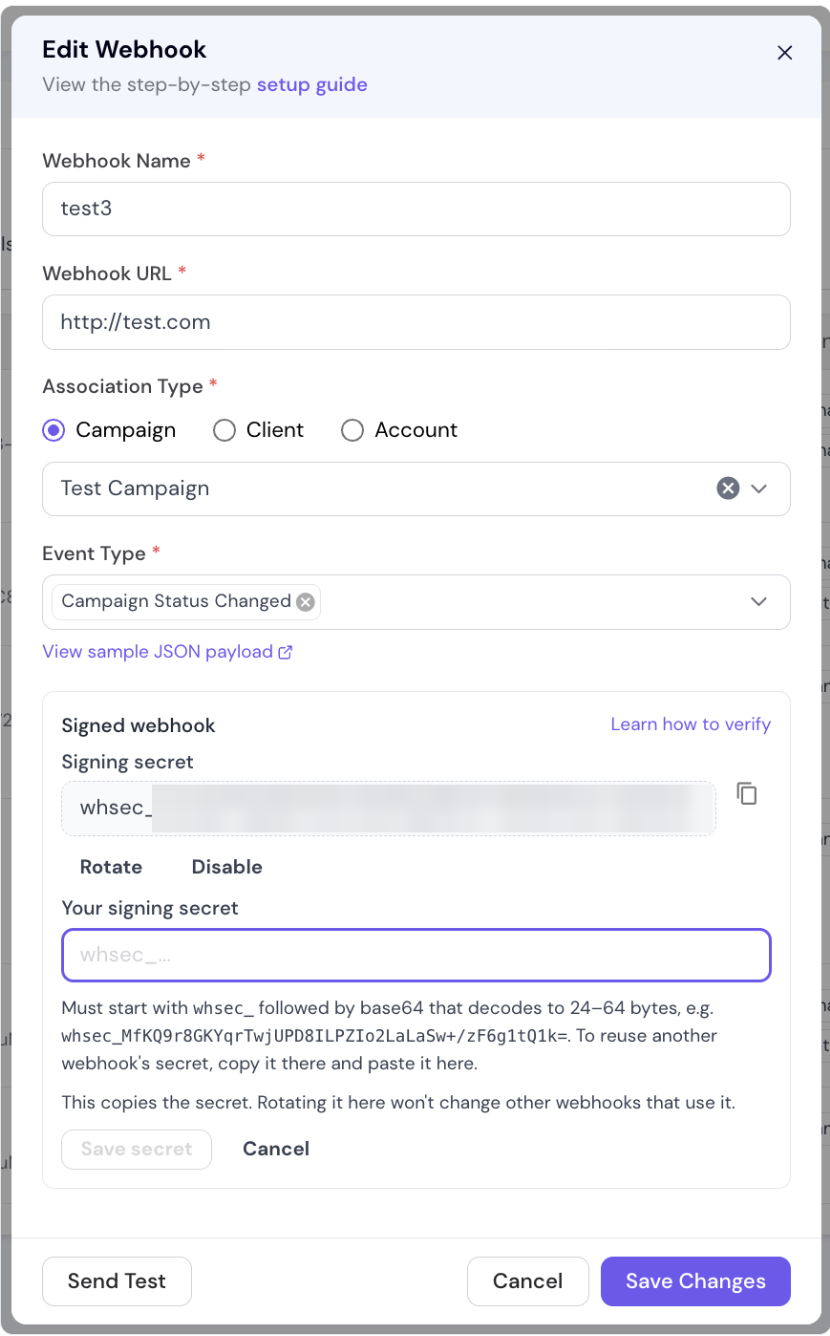
To reuse a secret from another webhook, copy it there and paste it here. Each webhook keeps its own copy, so rotating one later won't change the others.
If you changed anything else in the form, click Save Changes first. (Turning on signing takes effect right away and doesn't need saving.)
Click Send Test at the bottom of the Edit Webhook dialog. Smartlead sends a signed test request to your URL.
Check that your server accepted it.
Seeing “Test event sent unsigned”? The URL in the form is different from the saved one. Click Save Changes, then send the test again. Test requests are only signed when the URL matches the saved URL.
Test requests include "is_test": true in the body, so your server can tell them apart from real events. They're sent once and aren't retried.
Rotate the secret if it may have leaked, or as part of a regular security routine.
Rotate creates a new secret for you.
Replace with my own lets you paste a new secret you created.
When you rotate, do it at a quiet time and update your server straight away. Requests your server rejected in the meantime are retried automatically with the new secret (see Failed requests are retried below).
Edit the webhook and click Disable in the Signed webhook section, then confirm. Requests stop carrying signature headers and the secret stops working. You can turn signing on again later, and you'll get a new secret.
Share this section with your developer. Each signed request includes three headers:
webhook-id: a unique ID for the event. It stays the same when a request is retried.
webhook-timestamp: when this attempt was sent, in Unix seconds.
webhook-signature: the signature, for example v1,g0hM9SsE+OTPJTGt/tmIKtSyZlE3uFJELVlNIOLJ1OE=
The easiest way to check them is the free standardwebhooks library. Here's a Node.js example:
const express = require('express');
const { Webhook } = require('standardwebhooks');

const wh = new Webhook(process.env.SMARTLEAD_WEBHOOK_SECRET); // your whsec_... secret
const app = express();

// Use the raw body: the signature covers the exact bytes Smartlead sent.
app.post('/smartlead', express.raw({ type: 'application/json' }), (req, res) => {
  try {
    const event = wh.verify(req.body.toString('utf8'), req.headers);
    // ...handle the event...
    res.sendStatus(200);
  } catch (err) {
    res.status(401).send('invalid signature');
  }
});
Tips for your developer
Check the signature against the raw request body, before parsing the JSON.
Reply 401 when the signature doesn't match, not 400. A 401 is retried; a 400 isn't.
Use webhook-id to skip events you've already processed, because retries reuse the same ID.
Reply with a 2xx within 60 seconds, then do the heavy work.
If your server doesn't reply with a 2xx, Smartlead tries again automatically: up to 8 attempts over about 28 hours. Every retry is signed with the webhook's current secret.
Smartlead doesn't retry when your server replies 400, 413 or 422, because those mean the request will never be accepted. Each request times out after 60 seconds.
Check three things: the webhook is saved (not new), it isn't a Slack webhook, and your role is owner, Admin, Full Member, or a client with full access.
No. It's optional, and webhooks without it keep working as before. We recommend it for any webhook that triggers actions in your systems, such as updating a CRM.
secret_key is an older value sent inside the request body. Anyone who sees one request can copy it, so it doesn't prove where a request came from. The signature header does. Once signing is on, rely on webhook-signature.
Yes. POST /api/v1/webhook/{id}/signing-secret turns it on (add ?rotate=true to rotate), and DELETE /api/v1/webhook/{id}/signing-secret turns it off. See the developer guide for details.
Requests are signed, but these tools don't check signatures by default. You can keep signing on with no effect on them. To check signatures there, add a code step that uses your secret.
Your server still has the old secret. Copy the new one from the webhook's edit form into your server. Requests rejected with a 401 in the meantime are retried automatically.