
Each mailbox with warmup on has a warmup summary. It shows how your warmup emails performed over the last 7 days. Use it to check that warmup is running and landing in the inbox.
Where to find it
In the left menu, open Sender Accounts.
Click the mailbox you want to check to open its overview page.
Find the cards under Summary (last 7 days).
What each number means
Warmup emails sent
Warmup emails that started from your mailbox and went to another mailbox in the warmup pool. Replies your mailbox sends are counted separately, so your sent folder holds more warmup mail than this number.
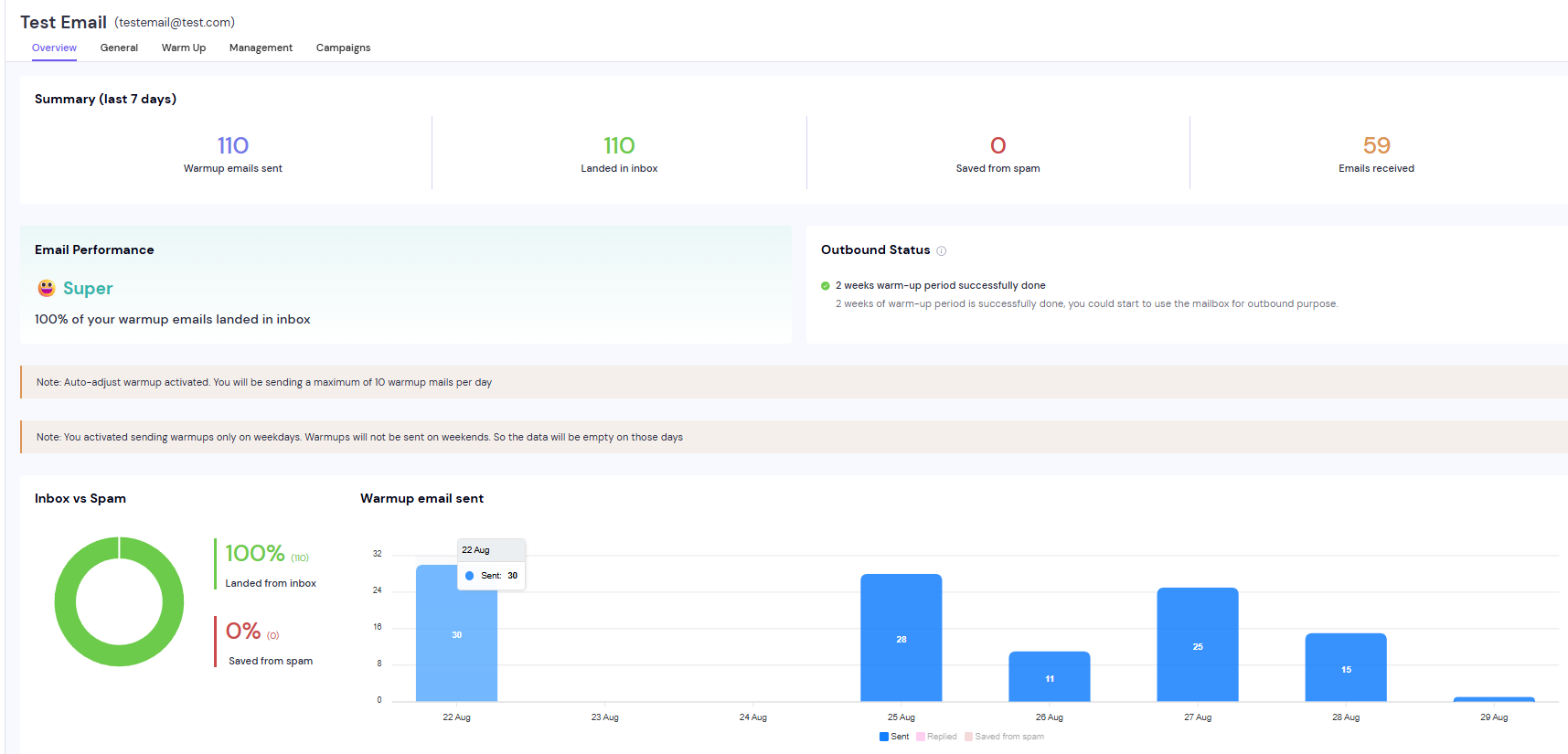
Landed in inbox
Warmup emails from your mailbox that landed in the primary inbox of the receiving mailbox.
Saved from spam
Warmup emails from your mailbox that landed in spam at the receiving mailbox and were moved to its inbox.
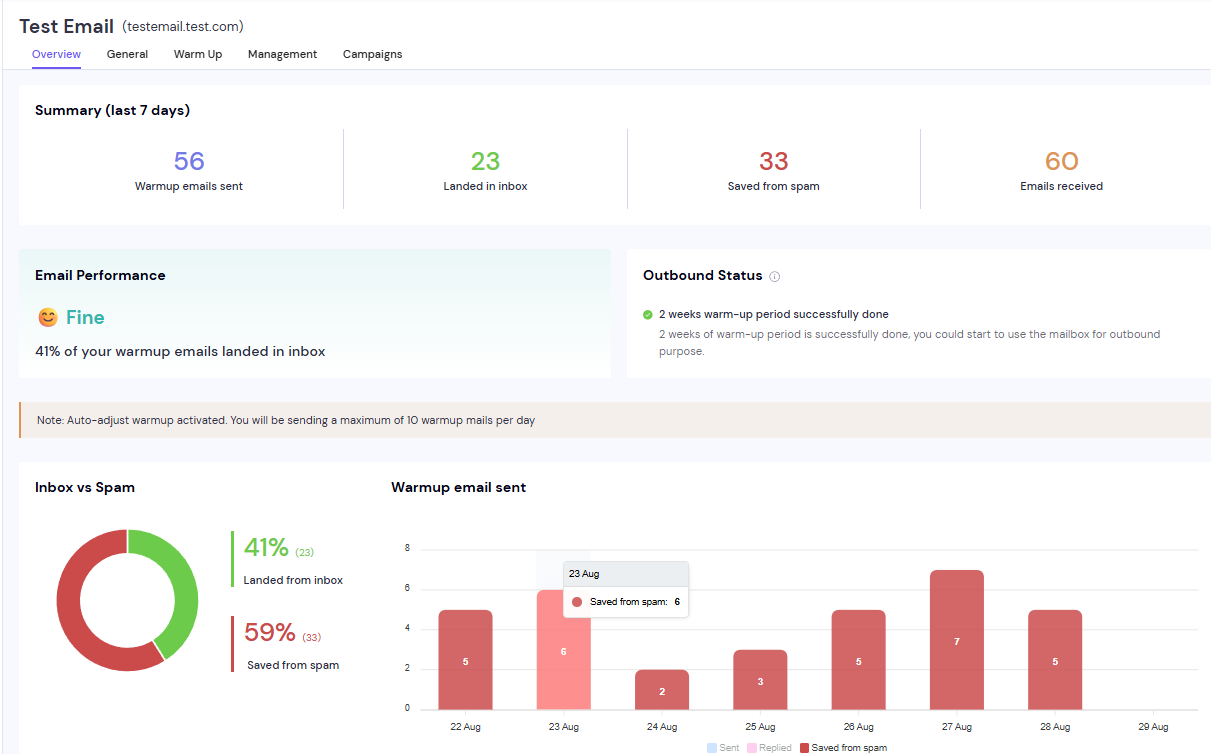
Emails received
Warmup emails that other mailboxes in the pool sent to your mailbox. This can be higher than Warmup emails sent, because other mailboxes write to yours too.
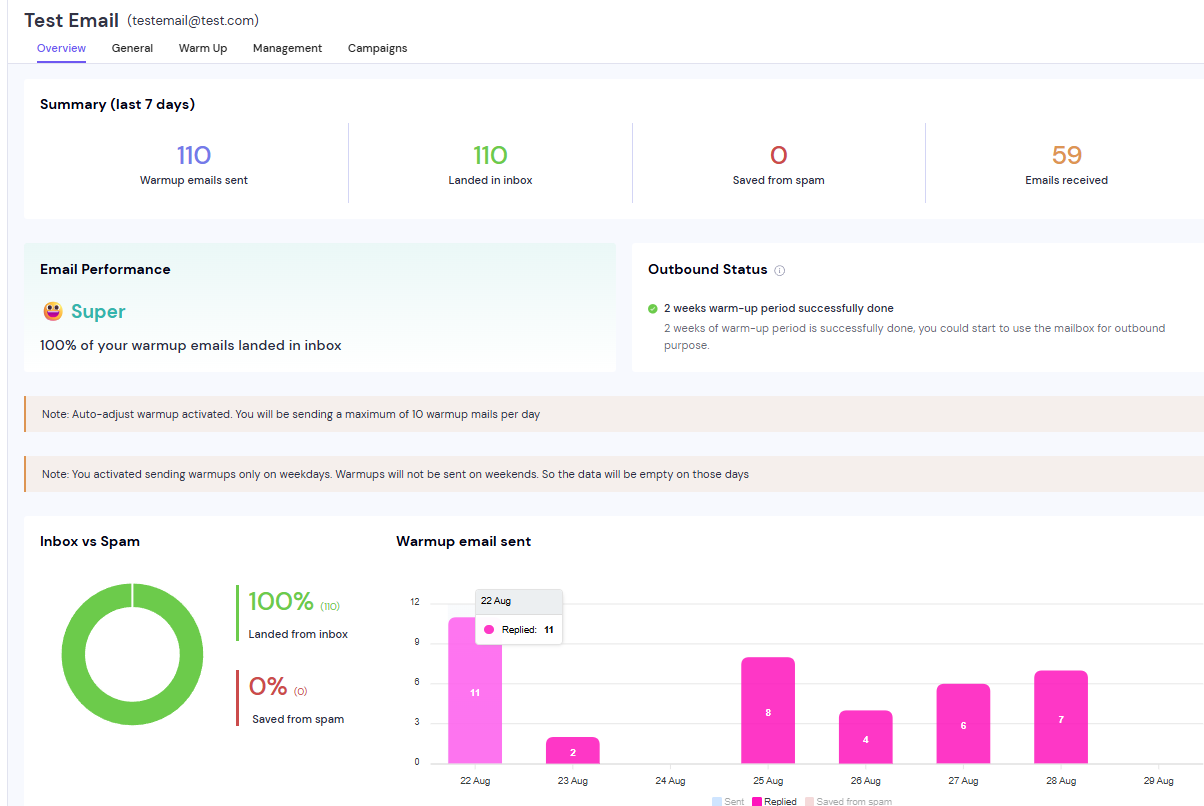
Replies in the bar chart
The bar chart shows Sent, Replied and Saved from spam for each day. Replied is the pink bar. It counts replies from other mailboxes to warmup emails your mailbox started.
Good to know
The summary covers the last 7 days only, not the mailbox's full warmup history.
Inbox vs Spam shows the same inbox and saved-from-spam figures as a share of the total.
FAQ
Why is "Emails received" higher than "Warmup emails sent"?
Other mailboxes in the pool also start conversations with yours. Received counts those, so it can be higher than sent.
Why does my sent folder show more warmup emails than the summary?
Warmup emails sent counts only conversations your mailbox starts. Its replies to other mailboxes are also in your sent folder but are counted separately.
Still stuck? Contact support from the chat in your Smartlead dashboard.