
When a lead sends an out-of-office auto-reply, you can mark the lead as Out of Office in Master Inbox. You can then leave that reply out of your reply rate, so your metrics only count real replies.
Step 1: Open the reply
Go to Master Inbox.
Click the reply.
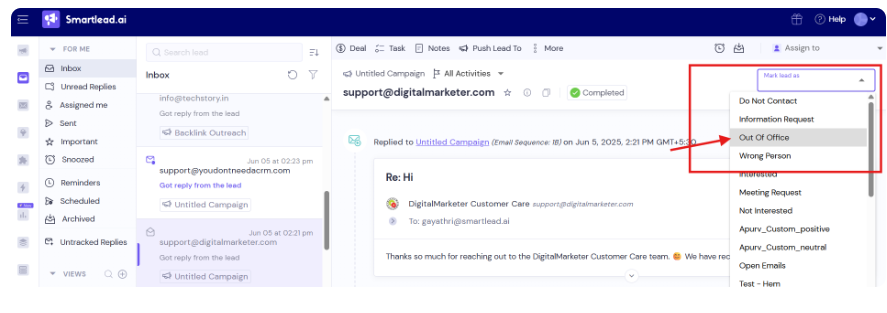
Step 2: Mark the lead as Out of Office
Click the Mark lead as dropdown.
Select Out of Office.
Step 3: Choose whether to ignore the reply
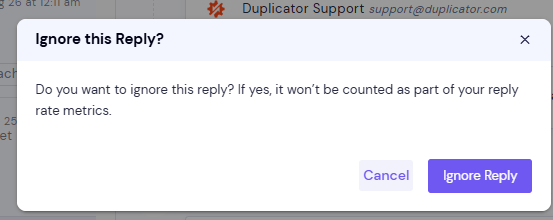
An Ignore this Reply? pop-up opens.
Click Ignore Reply to leave this reply out of your reply rate metrics.
Or click Cancel to keep counting it.
Good to know
Ignored replies stay in Master Inbox. Only the reply figures leave them out.
The Replied w/OOO figure counts every lead who replied, including ignored replies.
A campaign can leave out OOO replies for you: go to the campaign's Settings → AI & Automation → OOO Handling, turn on Exclude OOO from metrics, then click Save Changes. This option shows only when AI categorisation includes the Out of Office category.