
When a lead sends an out-of-office (OOO) reply, you can restart their remaining emails after a delay you choose.
Do it for one lead from Master Inbox, or turn it on for every AI-categorised OOO reply in a campaign.
Before you start
The campaign setting needs the Pro plan or above.
The campaign setting works only on replies Smartlead's AI categorises as out of office.
Step 1: Resume one lead from Master Inbox
Open Master Inbox.
Filter by lead category and choose the out-of-office category.
Open the lead's conversation.
Click More, then click Resume Lead.
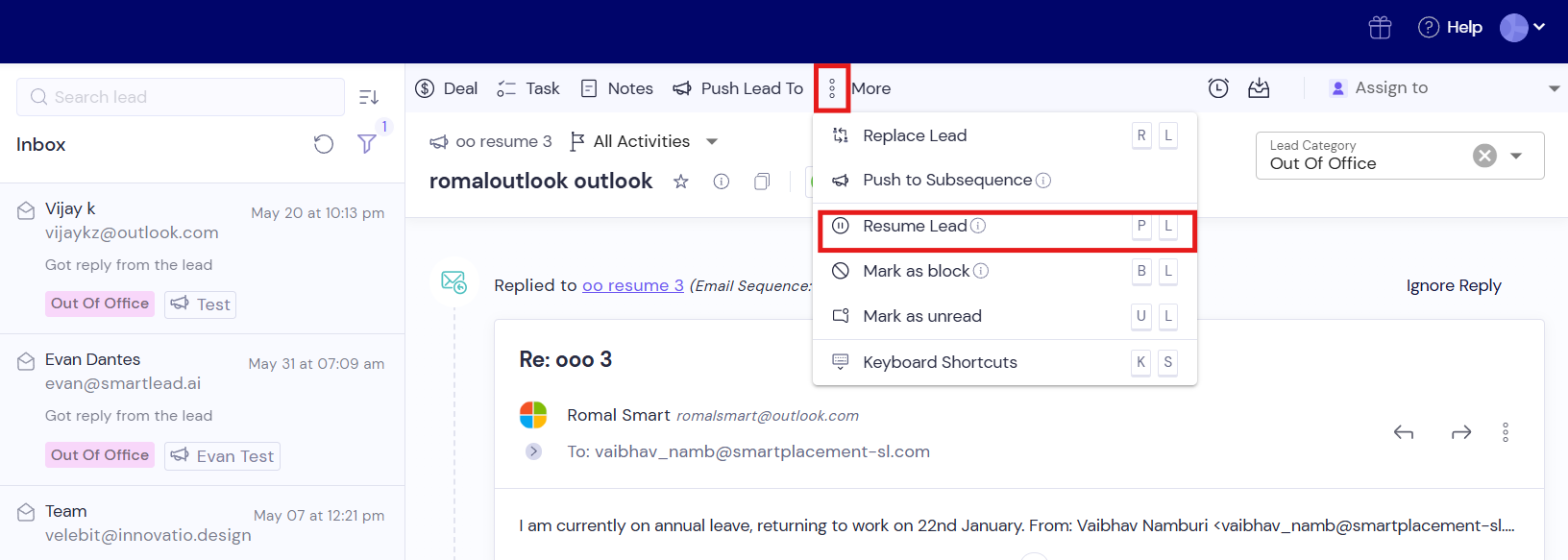
In Delay in number of days, enter how many days to wait. Leave it empty to resume now.
Click Resume.
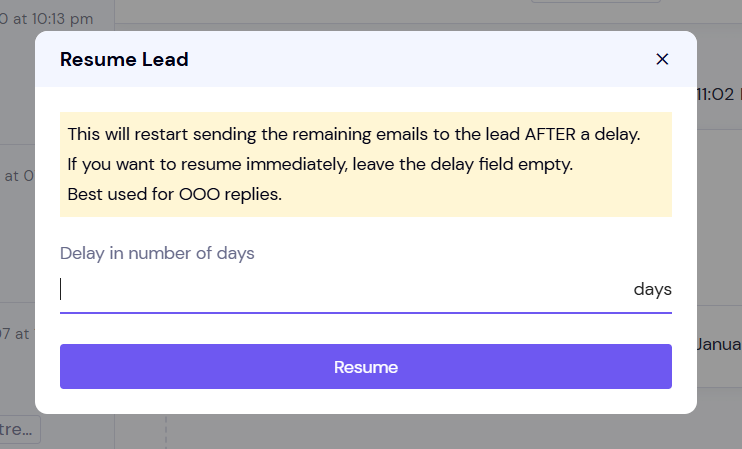
The lead's remaining emails restart after the delay.
Step 2: Reactivate every OOO lead in a campaign
Open the campaign and click its Settings tab.
Click AI & Automation.
Under AI Categorization, choose SmartLead AI and make sure out of office is in Active AI Categories. Custom AI also works.
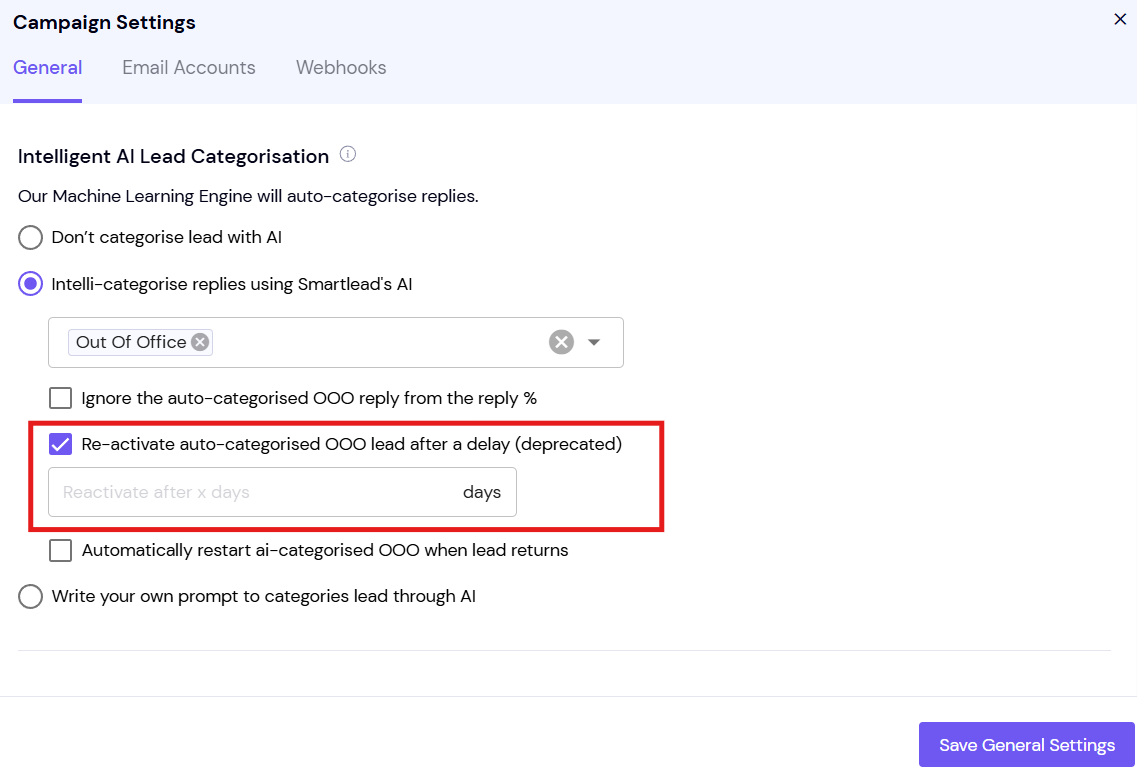
Under OOO Handling, turn on Re-activate OOO lead after a delay.
Enter the number of days to wait.
Good to know
A return date in the reply wins. If Automatically restart ai-categorised OOO when lead returns is also on and the reply gives a usable return date, the lead restarts from that date. The fixed delay is the fallback.
Resume Lead is available only for leads who replied and whose status isn't scheduled or in progress.
OOO Handling appears only when the AI is set to categorise out-of-office replies.
Still stuck? Contact support from the chat in your Smartlead dashboard.