
Pausing a campaign stops it from sending. When you resume it, it continues from where it left off.
Pause a campaign when you need to fix a deliverability issue, review its performance, or change its settings.
Step 1: Find your campaign
In the left menu, click Email Campaigns.
Search for the campaign by name, or scroll to it in the list.
Step 2: Pause the campaign
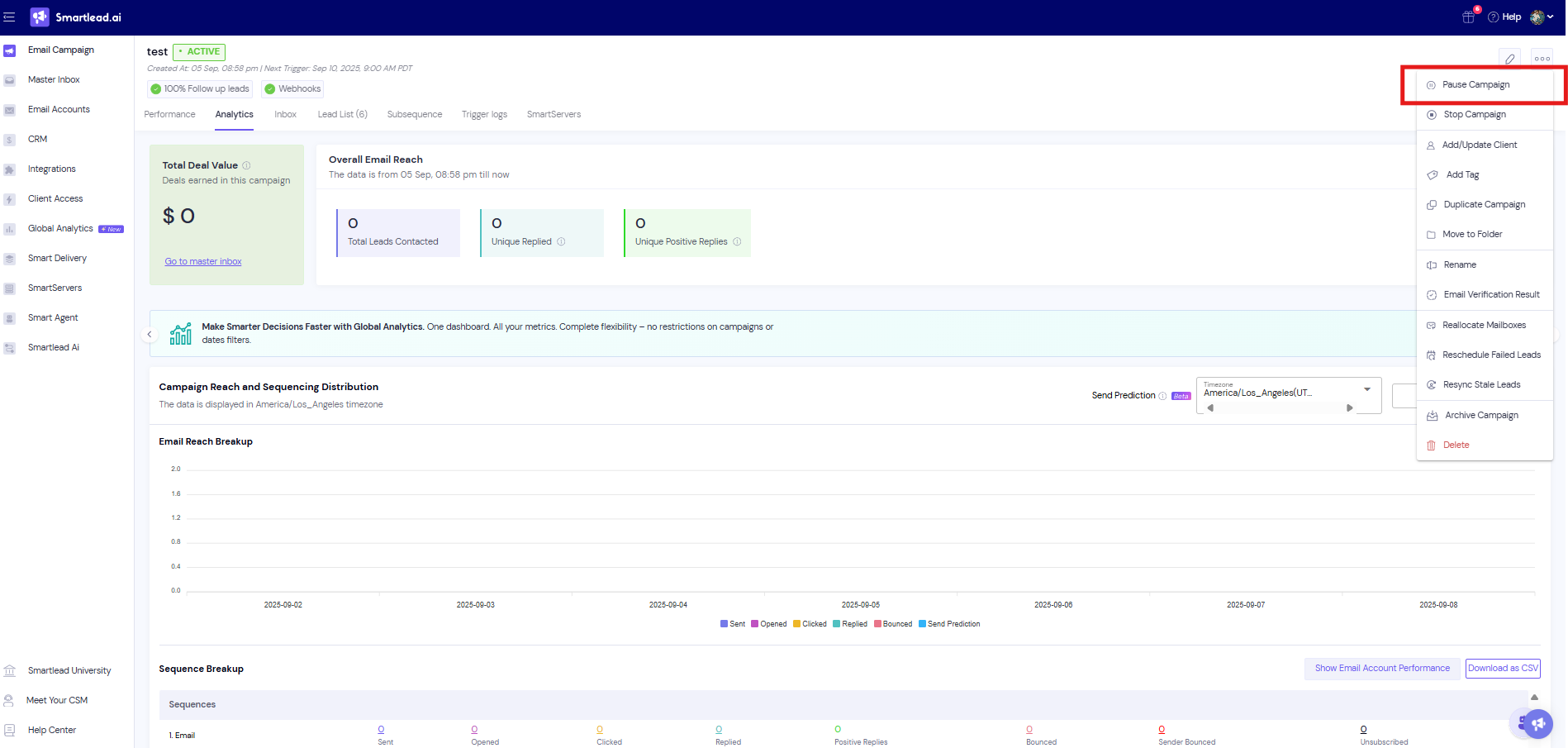
At the end of the campaign's row, click the ⋯ menu.
Click Pause Campaign.
The campaign's status changes to Paused.
Resume a paused campaign
Go to Email Campaigns and find the paused campaign.
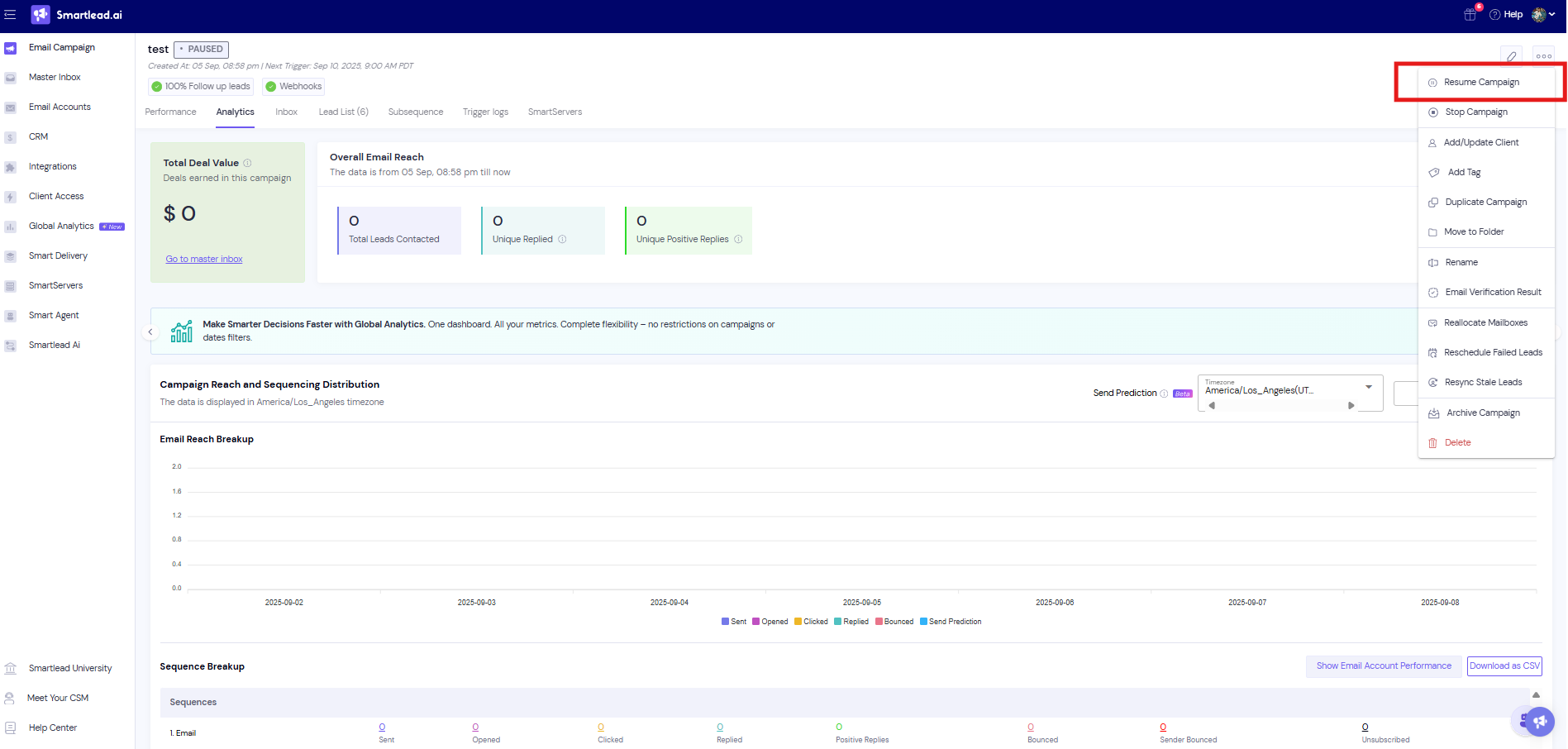
Click the ⋯ menu on its row.
Click Resume Campaign.
The campaign continues from where it left off.
Good to know
Smartlead can pause a campaign for you. If bounce protection is on and the campaign goes over its bounce limit, it pauses automatically.
When you resume a campaign that was paused for bounces, its bounce count is reset.
You can't schedule a pause. Pause and resume the campaign yourself, or use the API.
To stop one lead instead of the whole campaign, pause the lead. See How to pause a lead?.
Pause or resume with the API
Change the campaign's status with the campaign status endpoint. Set status to PAUSED to pause it, or START to resume it.
PATCH https://server.smartlead.ai/api/v1/campaigns/{campaign_id}/status?api_key=<your-api-key>

{ "status": "PAUSED" }
See the API reference for the full request.