Connecting a mailbox is the first step to launching campaigns on Smartlead.
The whole process takes under 2 minutes, and you only need to do it once per inbox, unless it gets disconnected due to any reason.
Two Ways to Send
Smartlead gives you two options for how emails are delivered:
Your Email Network (Smart & Prime plans only)
Formerly called "Your Private Infrastructure." If you're on a lower-tier plan, you'll see an inline upgrade banner instead of this option.
Connect using your private OAuth credentials
Better security and enhanced deliverability
More control — ideal for agencies and clients
Best for high-volume senders with dedicated IPs
Smartlead's Infrastructure
Quick setup with managed infrastructure
Pre-configured settings and default permissions
No server configuration needed
The setup modal walks you through 2 steps: choose your configuration type, then select your provider and connect.
Go to Email Accounts from the left-hand sidebar on your Smartlead dashboard.
Click + Connect Mailbox in the top-right corner. A setup modal will open.
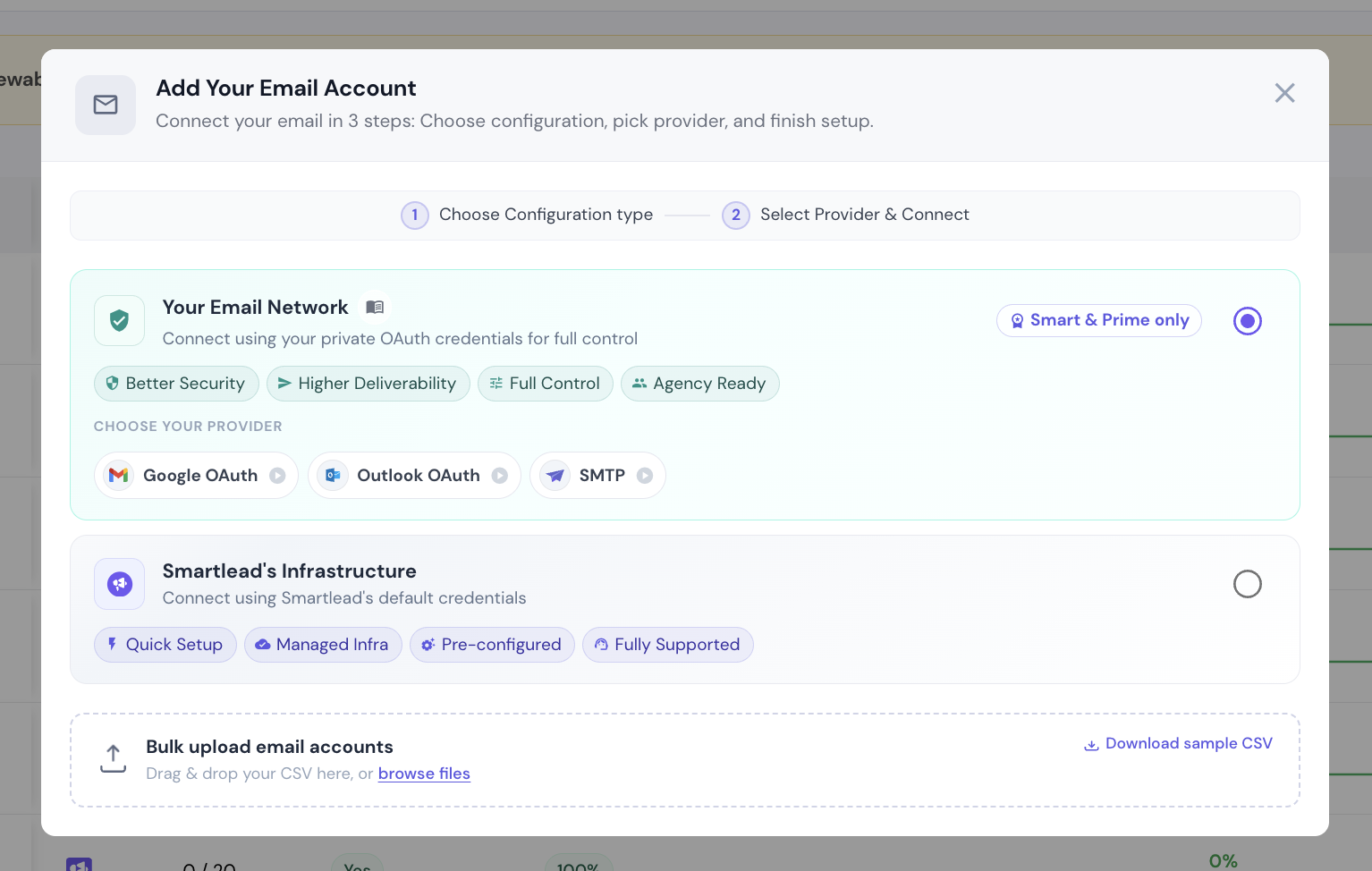
Choose your infrastructure type and follow the relevant path:
Your Email Network (Smart & Prime plans only) Choose your provider and connect via your private OAuth credentials:
Google OAuth → [How to Connect via Google OAuth – Your Email Network]
Outlook → [How to Connect via Outlook – Your Email Network]
SMTP
Smartlead's Infrastructure Choose your provider and follow the guided prompts:
Google OAuth → [How to Connect via Google OAuth – Smartlead Infrastructure]
Outlook → [How to Connect via Outlook – Smartlead Infrastructure]
SMTP → [How to Connect via SMTP – Smartlead Infrastructure]
Confirm the connection. Smartlead runs a quick verification. Once it passes, your mailbox shows a green Connected status and is ready to use in campaigns.
My email provider isn't listed - what do I do?
Select SMTP under Smartlead's Infrastructure. Nearly every provider (Zoho, FastMail, Amazon SES, and others) supports SMTP. Check your provider's documentation for the host and port details, then enter them in the setup modal. If you're stuck, contact our support team.
I connected my mailbox but it shows an error
A connection error usually means one of three things:
Google OAuth or Outlook: OAuth permissions may not have been fully granted. Try disconnecting and reconnecting - make sure you click Allow on all permission screens.
SMTP: Double-check your host, port, username, and password. Try port 587 (TLS) or 465 (SSL) if one isn't working.
All providers: Some accounts require an app-specific password (especially Google with 2FA). See the relevant provider guide for instructions.
What's the difference between Smartlead's Infrastructure and Your Email Network?
Smartlead's Infrastructure means Smartlead's servers relay your emails. Quick setup, pre-configured settings, no technical configuration needed. Your Email Network (formerly "Your Private Infrastructure") means emails go through your own OAuth credentials. Better security, more control, and enhanced deliverability - best for agencies, clients, or high-volume senders. Your Email Network is available on Smart and Prime plans; lower-tier plans will see an upgrade banner in its place.
How many mailboxes can I connect?
Depends on your Smartlead plan. Check your limit at Settings → Billing. You can upgrade from that page if you need more.
Can I connect multiple providers at the same time?
Yes. You can connect multiple mailboxes across different providers (Google OAuth, Outlook, SMTP) simultaneously, up to your plan limit. Assign different inboxes to different campaigns to increase sending volume while staying within each provider's daily limits.
Important Note: You can purchase domains and email accounts directly from Smartlead, including Google and Outlook mailboxes via SmartSenders. Learn More.