Pause a company only for the replies that matter to you.
Company-Level Auto-Pause stops your campaign from emailing other people at a company once one person from that company replies. Until now, any reply did this.
That isn't always what you want. If someone replies "I'm not the right person, try my colleague", pausing the whole company stops you from reaching the colleague they just pointed you to. Now you can choose which reply categories pause the company, for example everything except Wrong Person.
Note: Nothing changes unless you change it. Campaigns that already use Company-Level Auto-Pause keep pausing on any reply, exactly as before.
Choosing specific replies needs AI categorisation turned on for the campaign, with at least one lead category selected. Only the AI puts a category on a reply as it arrives, so the setting can only work with the categories the AI uses. Set this up in the campaign's Settings → AI & Automation section.
Replies from personal email domains such as gmail.com, outlook.com and yahoo.com never pause anyone else, because those people don't share a company.
Out of Office replies never pause the company when Out of Office is one of your AI categories. If it isn't, Smartlead can't recognise Out of Office replies, so they're treated like any other reply.
Open the campaign and go to its Settings tab.
Open the Campaign Behavior section and find Company-Level Auto-Pause.
Turn on Auto-pause on company reply if it isn't on already. Two options appear below it.
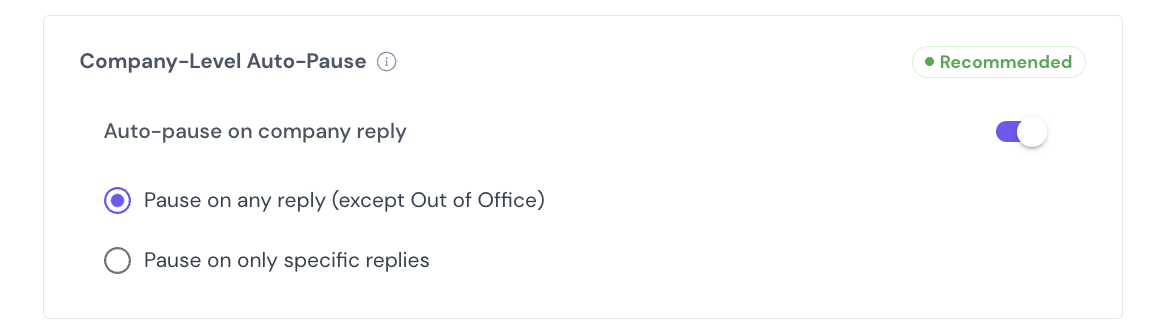
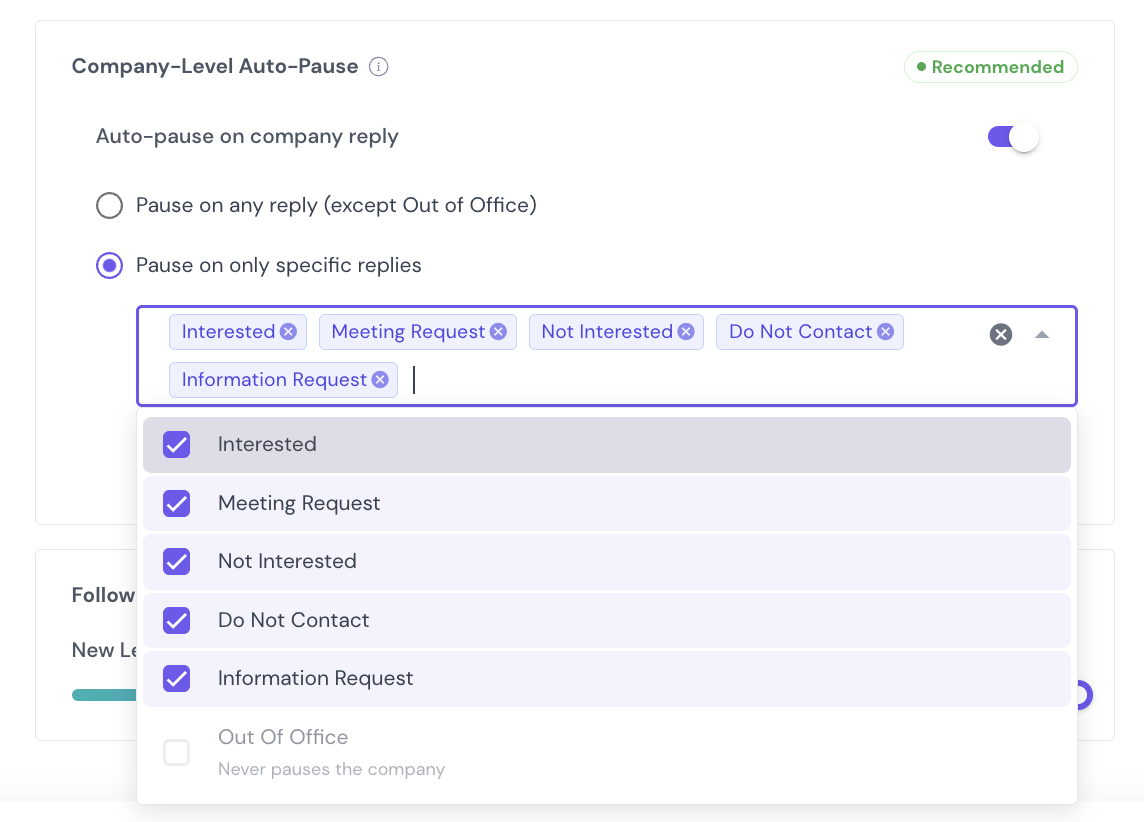
Select Pause on only specific replies. A list of your AI lead categories appears, with all of them selected and Pause for uncategorised replies as well ticked.
Remove the categories that shouldn't pause the company. Click the × on a category, or open the list and untick it.
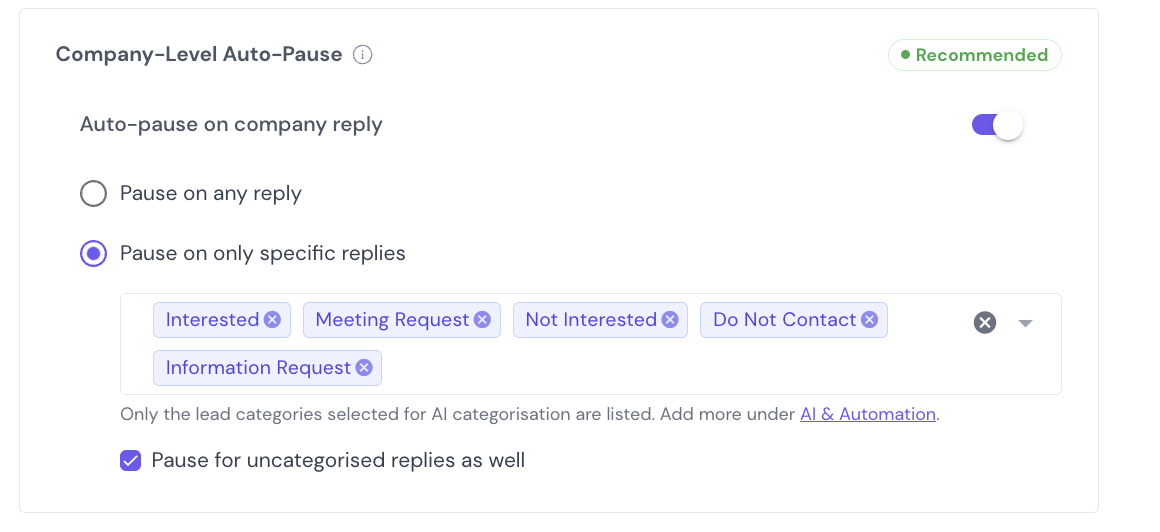
Decide whether replies without a category should pause the company, and tick or untick Pause for uncategorised replies as well (see Uncategorised replies below).
Save your settings.
From now on, when someone replies, Smartlead checks the reply's category. If it's one you selected, everyone else at that company is paused in this campaign. If not, the rest of the company keeps getting your emails.
Note: Select at least one category, or tick the checkbox. With no categories selected and Pause for uncategorised replies as well unticked, nothing would ever pause the company, so the setting can't be saved. If you don't want any reply to pause the company, turn off Auto-pause on company reply instead.
Pause on any reply:
Every reply pauses the company, whatever its category, and replies with no category too.
Out of Office replies don't pause the company, when Out of Office is an AI category.
Pause on only specific replies:
A reply in a category you selected pauses the company.
A reply in a category you didn't select (for example Wrong Person) doesn't pause the company.
A reply with no category pauses the company only if Pause for uncategorised replies as well is ticked.
Out of Office replies don't pause the company, when Out of Office is an AI category.
Some replies don't get a category. This happens when a reply doesn't fit any of your AI categories. Tick Pause for uncategorised replies as well if you'd rather pause the company for these replies, to be safe. Leave it unticked to keep emailing the company until a reply lands in a category you selected.
You can also leave every category unselected and tick only this box. The company is then paused only by replies that don't get a category.
Pause on only specific replies is greyed out, with a short note under it, in two cases:
AI categorisation is off. The note says Turn on AI Categorisation to use this. Click the link to go to AI & Automation and turn it on.
No AI categories are selected, or Out of Office is the only one. The note says Choose AI categories under AI & Automation to use this.
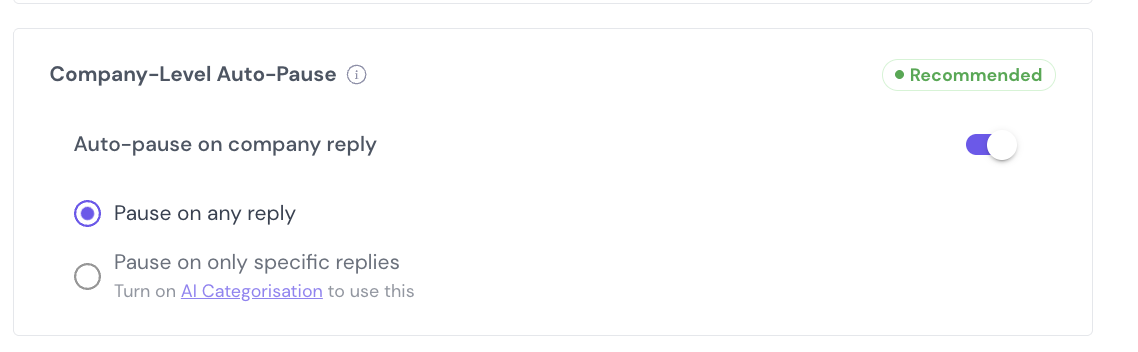
In both cases, Pause on any reply keeps working as before.
It says that when Out of Office is one of your AI categories, because only then can Smartlead recognise Out of Office replies and skip them. Without it, the option reads Pause on any reply, and Out of Office replies pause the company like any other reply. To skip them, add Out of Office to your AI categories.
The list shows only the categories selected for AI categorisation in this campaign, because those are the only categories a reply can get when it arrives. To add one, select it under AI & Automation first.
Not automatically. A category you add to AI categorisation later isn't selected in this list. Open Company-Level Auto-Pause and add it if you want it to pause the company.
No. Smartlead decides once, when the reply arrives, based on the category the reply got at that moment. Changing the category afterwards doesn't pause or resume anyone.
Your selection is kept, and a warning appears under it. With AI categorisation off, replies don't get a category, so your selected categories can't pause the company. If Pause for uncategorised replies as well is ticked, every reply pauses the company. Otherwise no reply does. To pause on any reply again, switch to Pause on any reply, or turn AI categorisation back on.
No. Like the Auto-pause on company reply toggle itself, it isn't copied. Set it again on the new campaign.
This setting only controls the other people at the same company. What happens to the person who replied is unchanged and follows your campaign's usual reply settings.
Related:
How to set up Company Level Auto-Pause ·