SmartDialer is your dedicated calling hub in Smartlead - the one place to manage every lead you need to call, your full call history, and every number you've purchased, whether the lead came from a manual import, a Direct Dial, or a Call step in a campaign sequence.
Look for Calls under Engage to open SmartDialer.
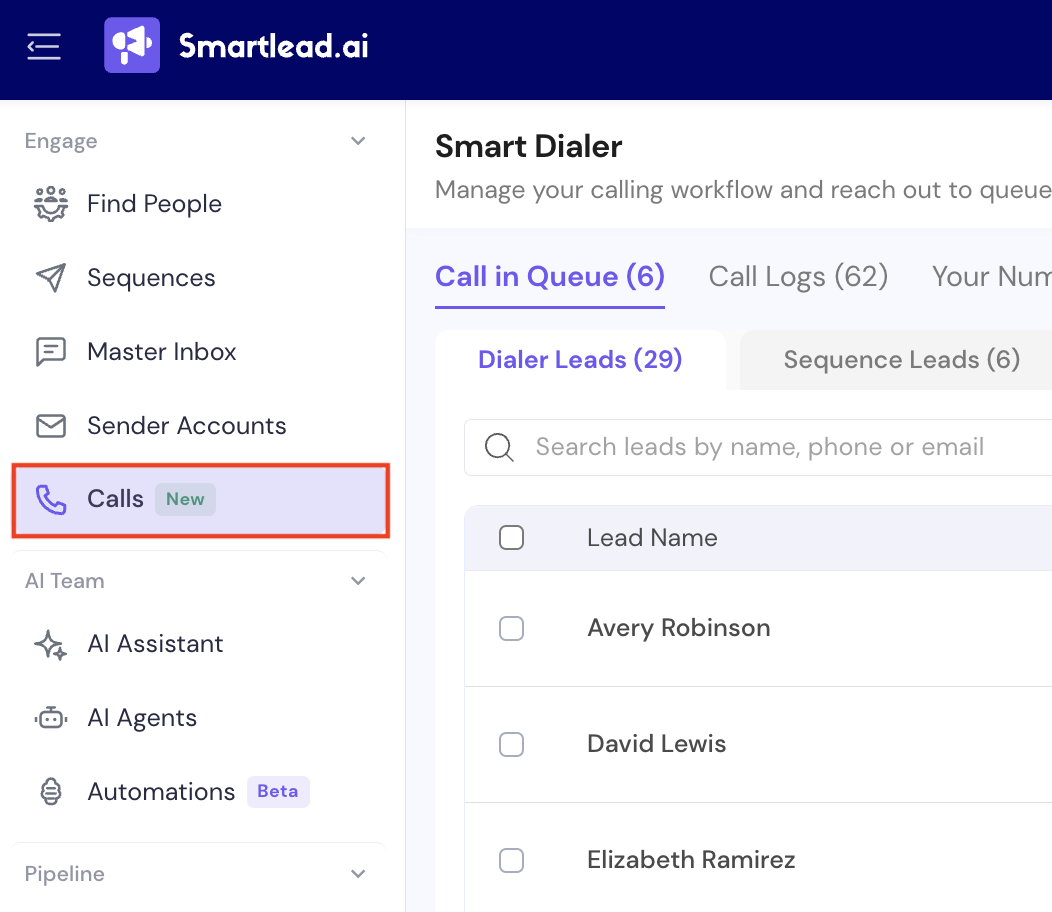
Click Engage Tab on the left nav and select Calls to access SmartDialer page. On SmartDialer page, select Call in Queue tab. This opens by default on the Dialer Leads sub-tab.
Dialer Leads are leads you've added directly to SmartDialer for calling - via import or manual entry - independent of any email campaign.
The table shows:
Lead Name
Phone
Company
List (the import batch/list the lead belongs to)
Actions - a call icon to dial immediately, and a ⋮ menu for more options
Use the search bar to find leads by name, phone, or email, and Filter to narrow the list down further.
Click the Sequence Leads sub-tab to see leads that reached a Call step inside an email campaign sequence and are now waiting for a manual call.
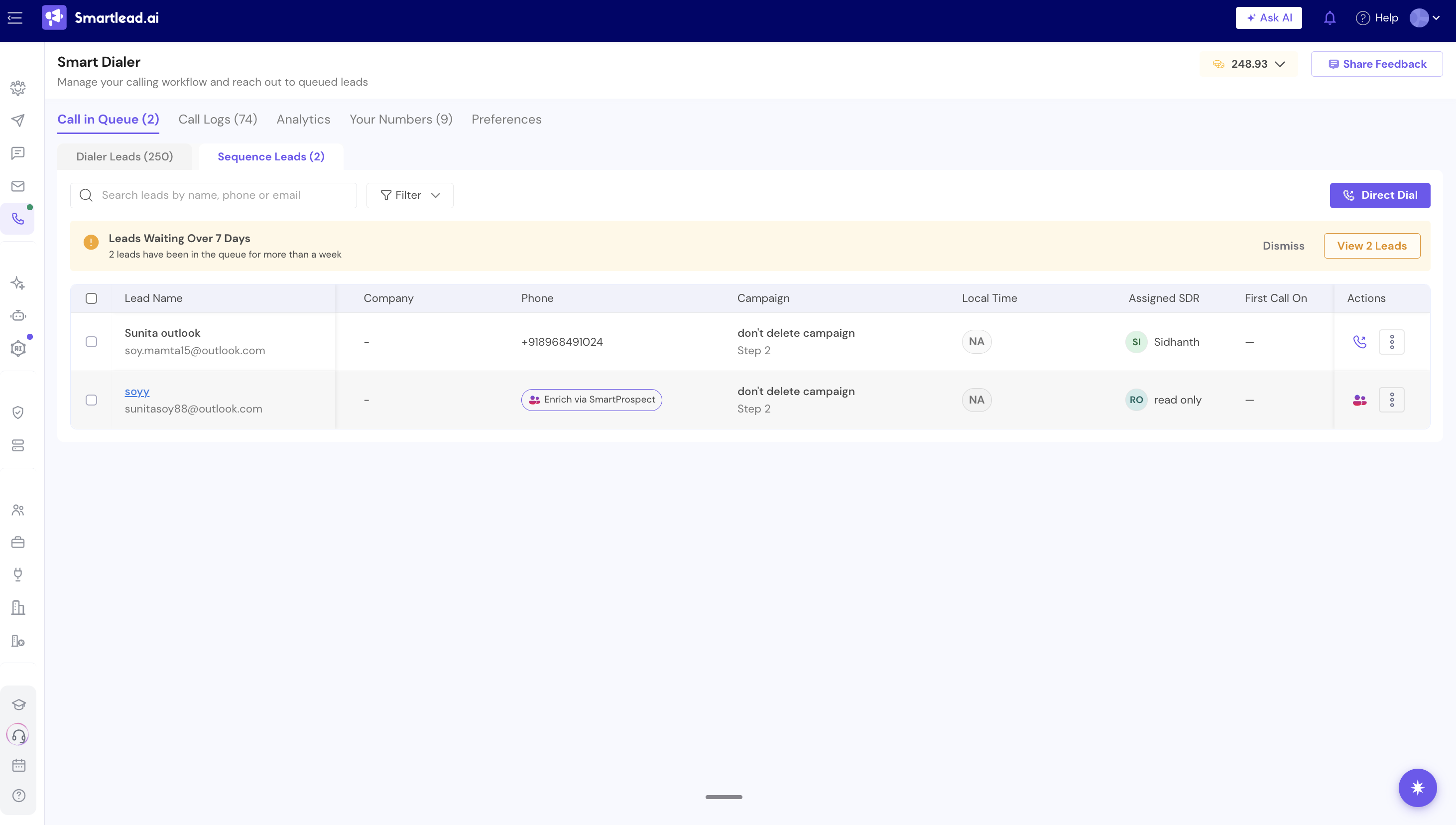
If leads have been sitting in the queue for more than 7 days, a Leads Waiting Over 7 Days banner appears at the top with a View [X] Leads shortcut, so nobody falls through the cracks.
To add a Call step to a campaign sequence in the first place, see: How to Add a Call Step to a Campaign Sequence?.
From the Call in Queue tab, click + Import Leads.
This opens a 3-step wizard. On Step 1, you can either:
Click Go to SmartProspect to pull verified leads straight from SmartProspect, or
Drop your file here, or browse to upload a CSV, XLSX, or XL file (up to 2MB)
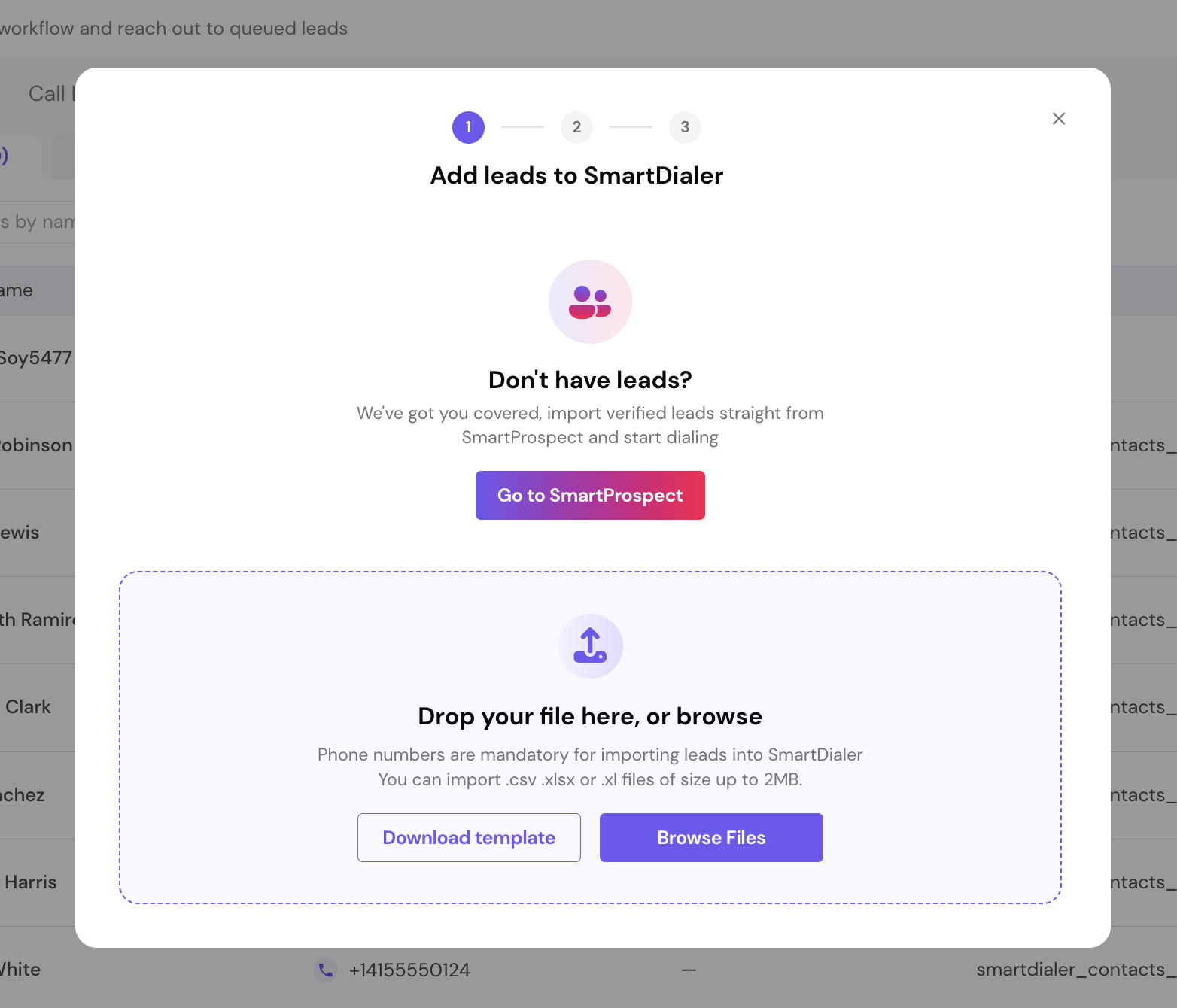
Phone numbers are mandatory to import leads into SmartDialer (Learn how you can import leads from SmartProspect.). Use Download template to get the correct file format before uploading.
Continue through the remaining steps of the wizard (column mapping and review) to confirm your import.
Click Direct Dial (top right of Call in Queue) - or the call icon next to any lead row - to open the Start a call modal.
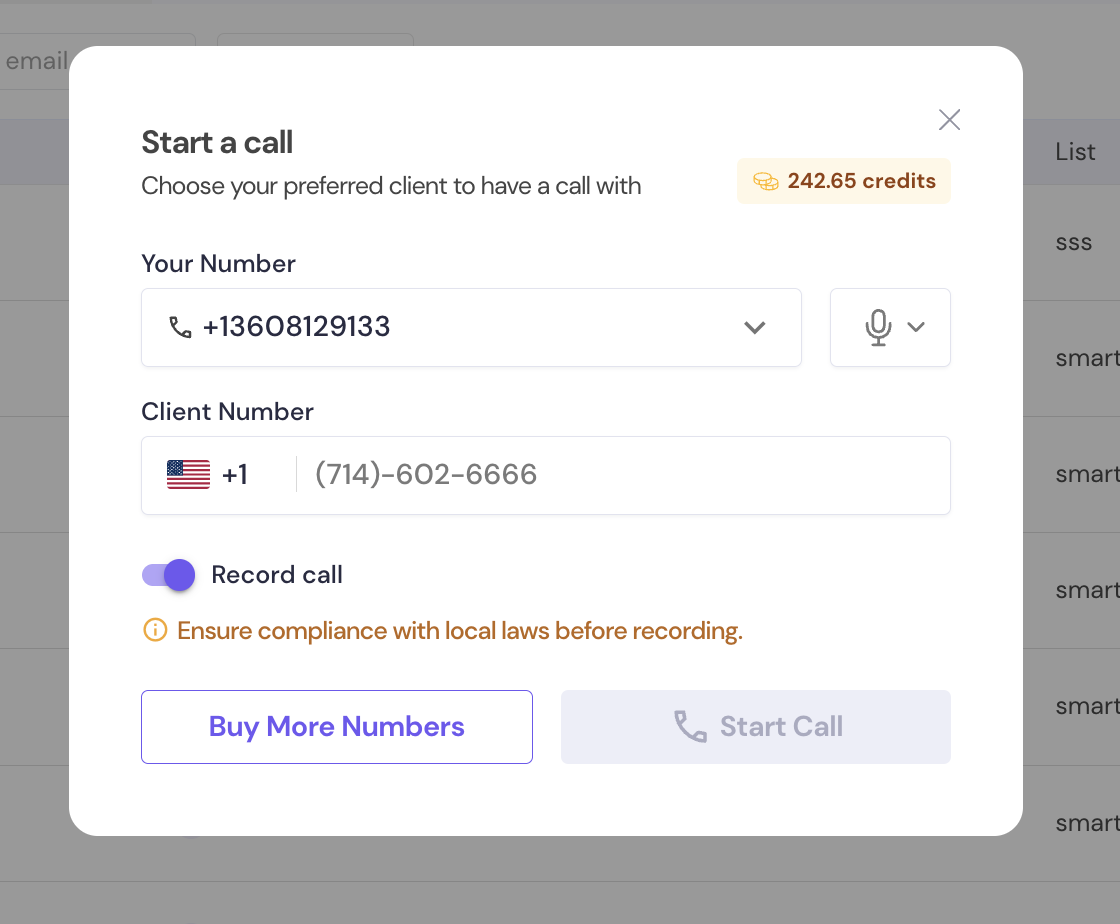
You can:
Choose Your Number from any number you own
Enter or confirm the Client Number to dial
Toggle Record call (on by default - a compliance reminder appears to ensure you follow local recording laws)
See your available credits in the top right of the modal
Click Start Call, or Buy More Numbers if you need an additional line first.
International Calling: Direct Dial isn't limited to domestic numbers. You can call international leads using your existing US number, without needing a separate local number for each country you call into.
Your browser will request microphone access before the call connects - allow it to proceed.
Click the Call Logs tab to see the full history of every call made through SmartDialer, regardless of whether it started in Master Inbox, a Sequence Leads queue, or Direct Dial. Inbound calls forwarded from your SmartDialer numbers are tracked here too (see 9. Settings: Inbound Calling).
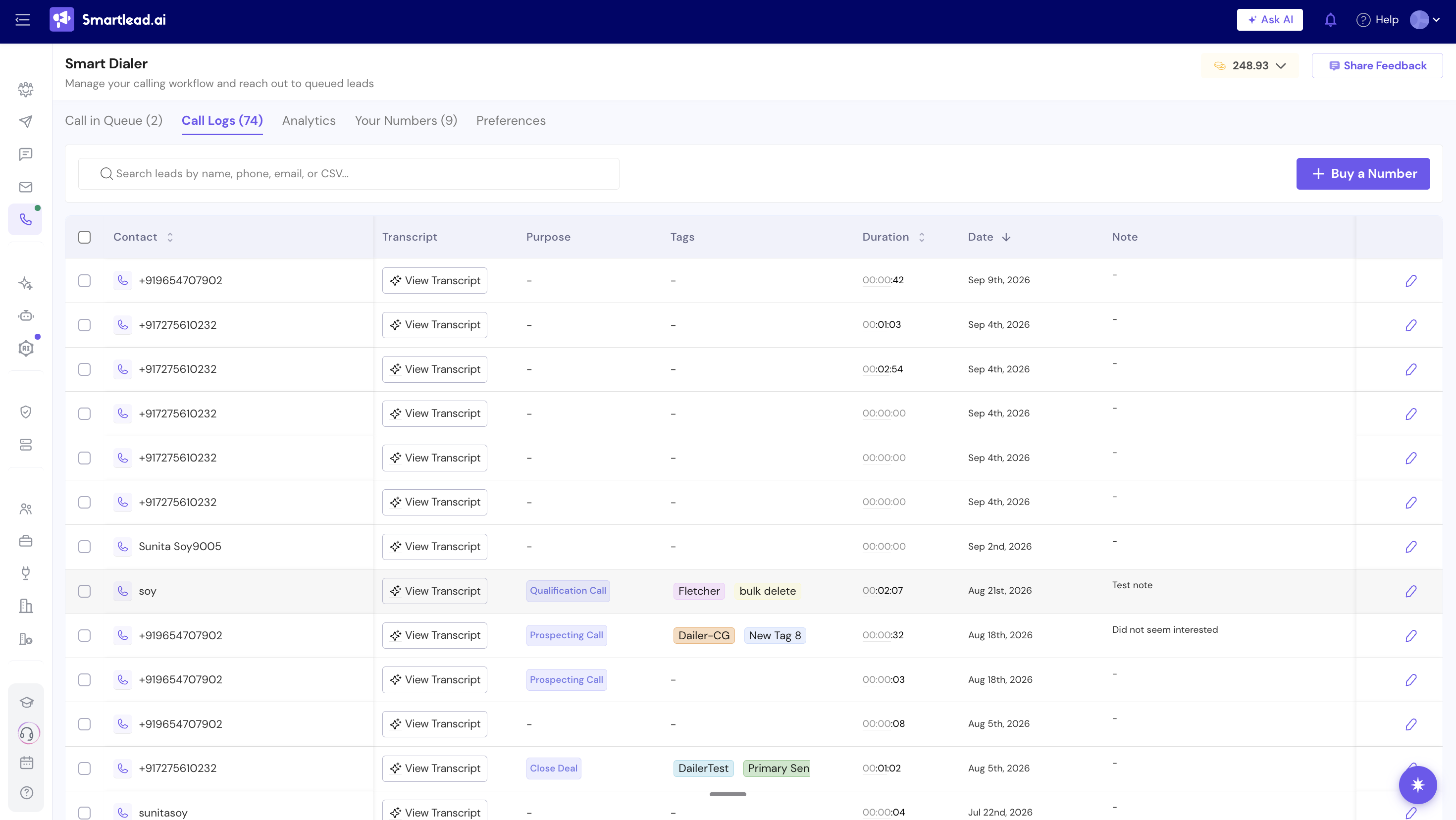
The table shows:
Contact (name or phone number)
Transcript - click View Transcript to open the AI-generated transcript
Purpose (e.g., Prospecting Call, Support Call, Others)
Tags
Duration
Date
Note
Edit icon - update purpose, tags, or notes after the fact
Use the search bar to find a specific call by name, phone, email, or CSV.
Click the Your Numbers tab to manage every phone number your workspace owns.
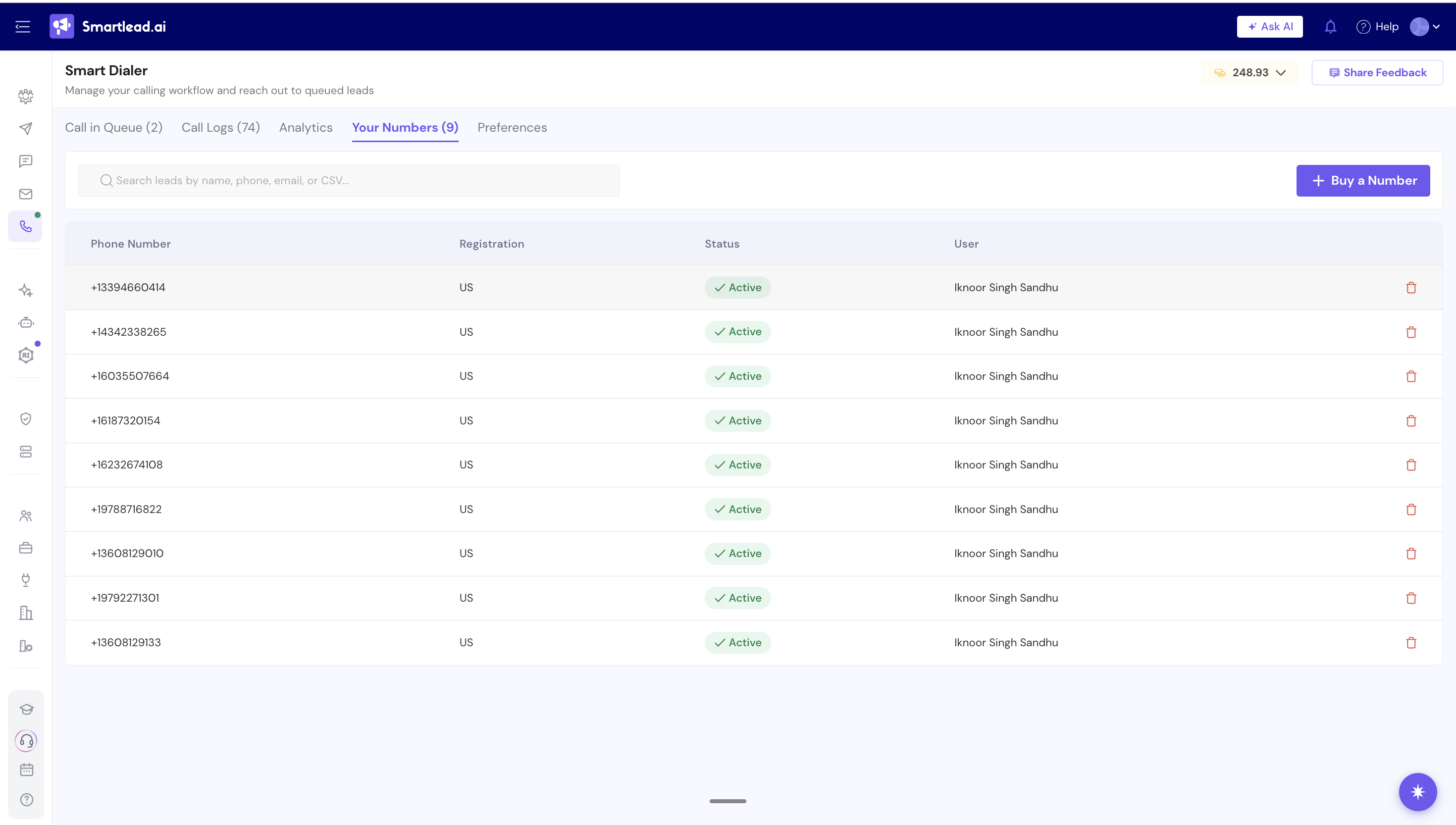
The table shows:
Phone Number
Registration (country)
Status (e.g., Active)
User - who the number is assigned to
A delete icon to remove a number
Click Buy a Number to purchase an additional line - see How to Call a Lead from Master Inbox for the full number-purchase flow and pricing.
To forward incoming calls on any of these numbers to another phone, see 9. Settings: Inbound Calling below.
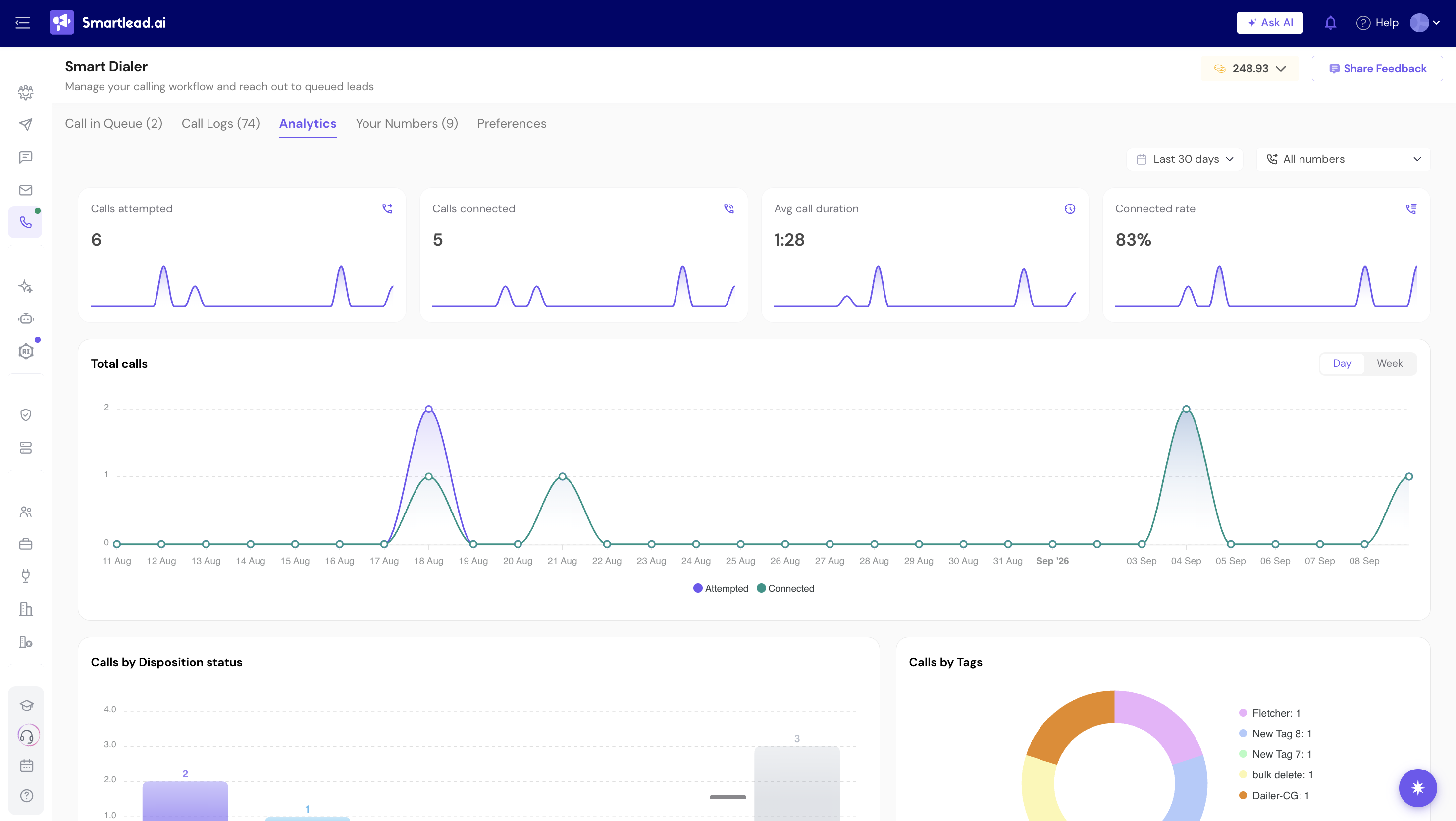
Click the Analytics tab to see how your calling program is performing. Filter by date range and by number at the top, then review:
Calls attempted, Calls connected, Avg call duration, and Connected rate - summary stat cards with a trend sparkline
Total calls - a Day/Week chart comparing calls attempted vs. connected over time
Calls by Disposition status and Calls by Tags - breakdowns of your logged calls
Available credits and Dialer Credit Utilization - your remaining balance and how it's being spent over time
For a full breakdown of every stat and chart, see: SmartDialer Analytics: Understanding Your Calls' Performance.
Click the Settings tab to record or upload pre-recorded voicemails that you can drop during a live call instead of waiting on an unanswered ring. Click Create New Voicemail to add one, and use the edit and delete icons on each saved voicemail to manage them.
For the full setup and usage guide, see: How to Create a Voicemail in SmartDialer.
Never miss a callback from a prospect. Forward calls that come in to your SmartDialer numbers to any phone number you choose.
Click the Settings tab and scroll to Inbound Calling.
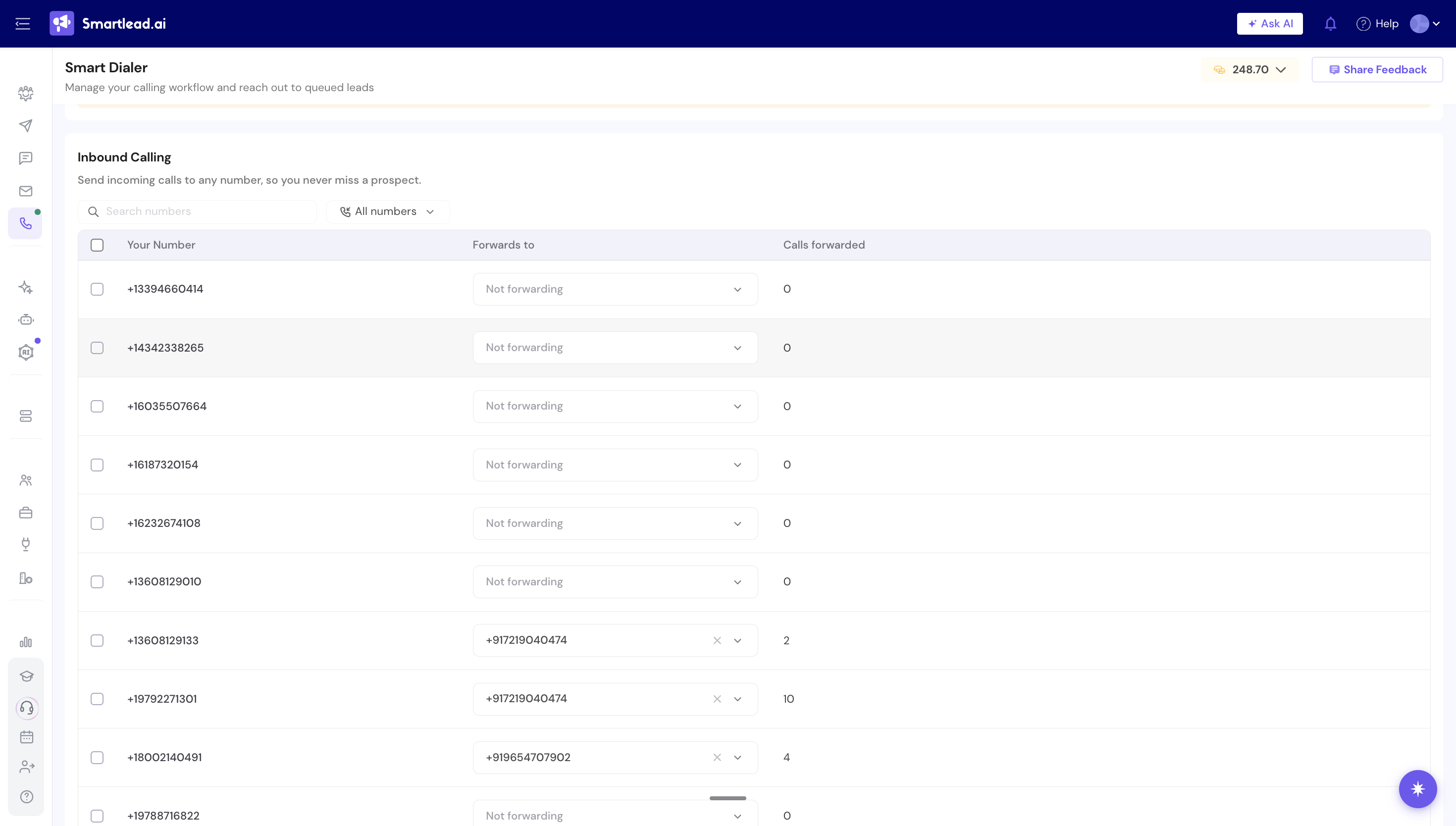
For each number, open the Forwards to dropdown and choose the number you want incoming calls forwarded to. To stop forwarding, click the x in the field.
The table shows:
Your Number - the SmartDialer number the call comes in to
Forwards to - the number calls are forwarded to
Calls forwarded - how many calls that number has forwarded
Use the search bar to find a specific number, and the All numbers filter to narrow the list.
You can enable inbound calling by adding a forwarding number (you can bulk add too). If you want to disable it, simply remove the forwarding number (or bulk remove).
Numbers set to Not forwarding won't receive inbound calls until you set a forwarding destination.
Click on “View Credit Cost CSV” to check the inbound calling rates.
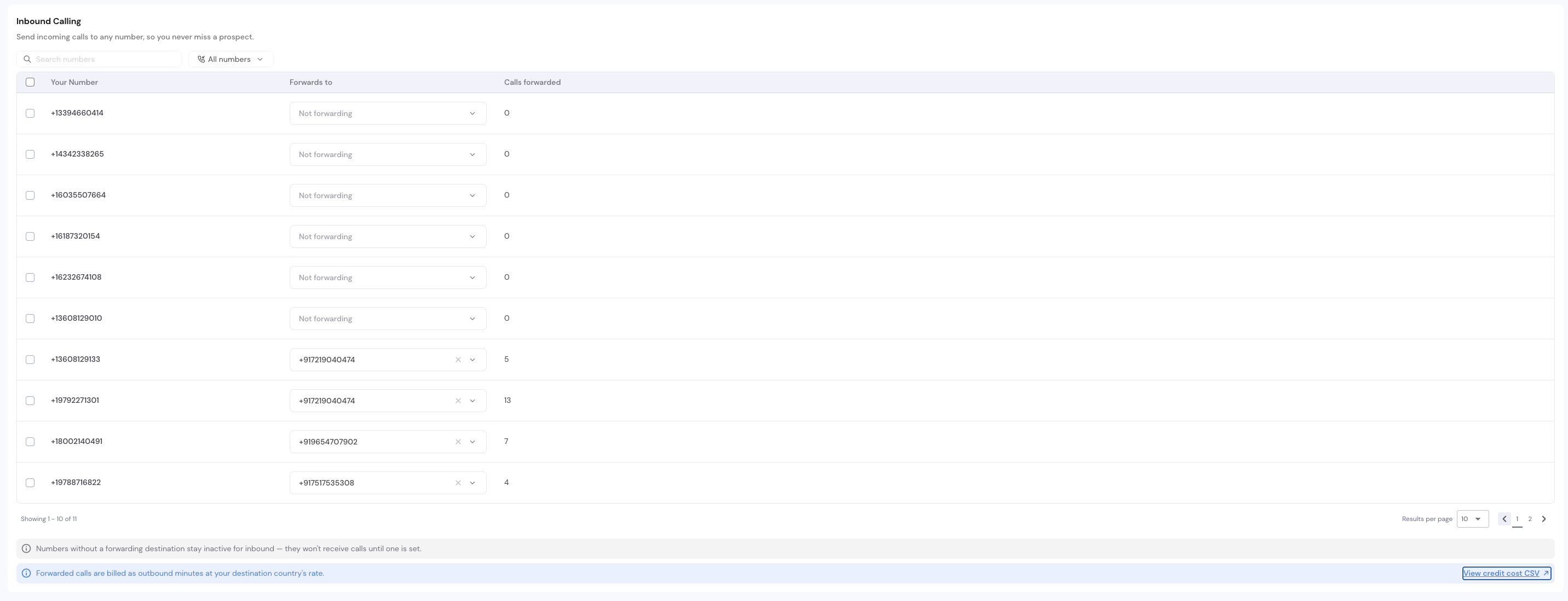
Every forwarded inbound call is tracked in the Call Logs tab.

Master Inbox - call a lead from their individual email thread
Sequence Call step - automatically queues a lead for a call at a set point in your outreach
Dialer Leads / Import / Direct Dial - manually add or call any lead, on demand, independent of a campaign
Inbound Calling - forward calls to your SmartDialer numbers to any phone, so you never miss a callback
Call Logs and Your Numbers - the shared source of truth for every call and number, no matter where the call started
Learn more about SmartDialer and how you can place a call from Master Inbox directly.